
My External Hard Drive Crashed: What to Do Immediately to Save Your Data
Palm Beach PC Services
Tech Expert
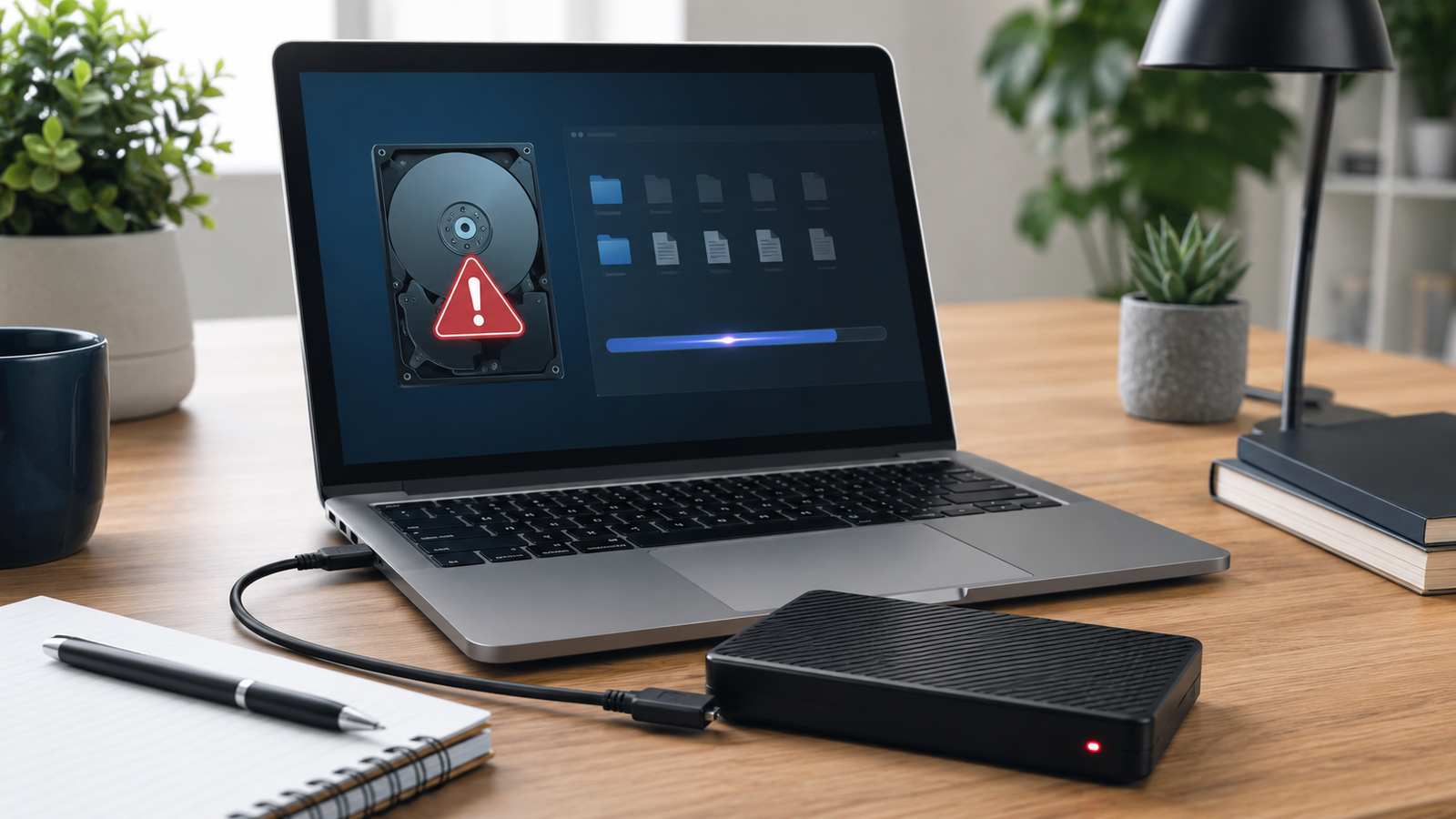
Plugging in your external hard drive only to find it unresponsive is a heart-dropping experience. Whether it holds years of family photos, crucial business documents, or critical project backups, a crashed drive can feel disastrous. The steps you take in the first few minutes after realizing your drive has failed will make the difference between a full recovery and permanent data loss.
Here is what you need to do—and critically, what you must avoid—if your external hard drive crashes, stops showing up, or starts acting strangely.
(1) Stop Using the Drive Immediately
The golden rule of data recovery is simple: if a drive is failing, power it off. Do not repeatedly plug it in and out, do not try to restart your computer with the drive attached, and do not try to copy large folders "just in case."
If the drive is suffering from a hardware failure, every second it remains powered on and spinning increases the chance of the read/write heads scratching the delicate data platters. Safely eject the drive from your operating system, unplug it, and set it aside in a safe location.
(2) Listen for Clicking, Grinding, or Beeping Sounds
Before you unplug it, listen closely. Is the drive making a rhythmic clicking, a harsh grinding, or a faint buzzing/beeping sound?
- Clicking or Grinding: This is a severe mechanical failure. The heads are physically struggling to read the disk. Power it off immediately. Software cannot fix this.
- Beeping: This often means the motor is seized or the read/write heads are stuck to the platters. It requires a cleanroom environment to unstick.
- Silent: If it spins up smoothly but isn't recognized, you might be dealing with a logical/software issue, a corrupted partition, or just a bad cable.
(3) Do Not Run Random Free Recovery Software First
It is tempting to immediately download free data recovery tools to try and scan the drive. Resist this urge. If the drive is physically failing, a deep software scan will force the damaged components to work continuously for hours, which can literally grind your data into dust.
If the issue is logical (like an accidental deletion or a corrupted file table), consumer software can sometimes help, but if the software attempts to write data back to the same drive, it can overwrite the very files you are trying to save. Always leave Data Recovery to secure, read-only methods.
(4) Check the Simple Things Safely
If the drive sounds completely normal but just isn't showing up on your screen, you can safely test a few basic hardware connections:
- Swap the Cable: USB cables go bad surprisingly often. Try a different, high-quality cable.
- Change the Port: Move the drive from a front USB port or USB hub directly into a port on the back of the computer (which connects directly to the motherboard).
- Try Another Computer: Plug the drive into a different PC or Mac to see if the issue is with your computer's USB drivers rather than the drive itself.
(5) What If the Drive Says It Needs to Be Formatted?
A very common scenario is plugging in the drive and seeing a pop-up: "You need to format the disk in drive D: before you can use it."
Never click "Format disk."
Formatting the drive tells the computer to erase the existing file system to make way for a new one. While formatting might make the drive usable again, it will hide all your existing files. This error usually means the file table (the "index" of the drive) has become corrupted, often due to an improper ejection or a sudden power loss. The data is usually still there, but professional tools are needed to extract it safely.
(6) What If the Drive Was Dropped or Damaged?
If your external hard drive fell off the desk or suffered a liquid spill, the rules change entirely. Do not attempt to power it on to "see if it still works." Mechanical drives have read/write heads that hover mere nanometers above the data platters. A drop can cause these heads to collapse onto the platters. Powering the drive on will cause the heads to drag across the surface, destroying data instantly. Leave it unplugged and consult a professional.
(7) Can Remote Support Help With Data Recovery?
In many logical failure scenarios—where the drive spins up normally but the files are hidden, deleted, or the partition is corrupted—we can often perform recovery through Remote Computer Support. As long as your operating system's device manager can physically detect the drive, remote diagnostics and advanced file extraction are frequently possible.
(8) When Professional or Onsite Help Is Better
If the drive is making noises, is not recognized by the computer at all, or belongs to a company containing critical workflow data, professional intervention is required. Physical data recovery requires sterile cleanrooms and specialized hardware to safely transplant damaged mechanical parts.
Whether you need general Computer Repair, robust Business IT Support to setup reliable backup systems, or advanced Virus & Malware Removal after a ransomware attack, local expertise ensures your data is handled securely and swiftly.
(9) How Palm Beach PC Services Helps
Data loss is stressful, but a crashed external hard drive doesn't have to mean the end of your files. We offer comprehensive diagnostic and data recovery services to evaluate your drive safely, determine the nature of the failure, and utilize the best tools to extract your information intact.
Local Service Area
Palm Beach PC Services provides onsite computer repair in Palm Beach Gardens as well as nearby areas including North Palm Beach, Juno Beach, Riviera Beach, Singer Island, Palm Beach, Lake Park, West Palm Beach, Jupiter, Abacoa, Boca Raton, Delray Beach, Manalapan, Ocean Ridge, and Gulf Stream. Remote support is also available nationwide.
Frequently Asked Questions
Can I recover files from a clicking external hard drive?
A clicking sound usually indicates a physical mechanical failure, such as the read/write heads striking the disk platters. You must immediately unplug the drive to prevent permanent scoring of the disk. Software recovery cannot fix this; it often requires a cleanroom hardware recovery service.
Should I format my external hard drive if Windows asks me to?
No, absolutely not. Formatting the drive will wipe the file system and make your data much harder, if not impossible, to recover. If you receive a 'You need to format the disk' error, click 'Cancel' immediately and safely eject the drive.
Can remote support fix an external hard drive problem?
Remote support can help if the issue is software-related, such as a corrupted file system, accidental deletion, or a drive letter conflict. However, if the drive is physically broken, making noises, or not recognized by the computer's BIOS/Device Manager at all, physical onsite or professional lab recovery is necessary.
What should I do if my external hard drive was dropped?
If the drive was dropped, assume it has sustained physical damage. Do not plug it in to 'test' it. Spinning up a dropped mechanical drive can cause the heads to scratch the platters, permanently destroying your data. Seek professional evaluation immediately.
How can I prevent data loss in the future?
The best prevention is the 3-2-1 backup rule: keep 3 copies of your data, on 2 different types of media, with 1 copy stored offsite (such as a secure cloud backup). Never rely on a single external hard drive as the only location for important files.
Need Emergency Data Recovery?
If your external hard drive crashed, stopped showing up, or is making unusual sounds, stop using it and get help before risking your files. Call or text Palm Beach PC Services at 561-351-5858 or contact us online for data recovery guidance and computer support.