
Bought a New Computer? How to Safely Move Your Files, Photos, Email, and Settings
Palm Beach PC Services
Tech Expert
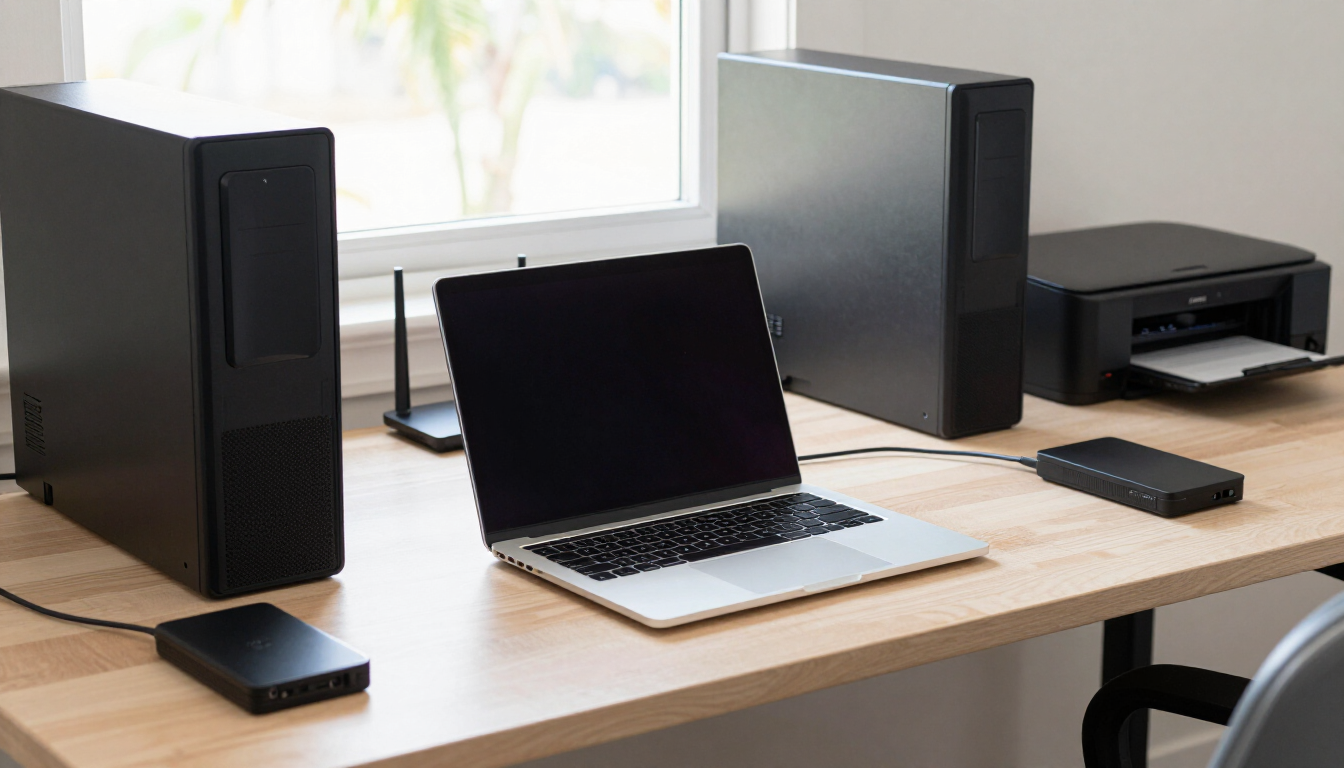
Buying a new computer should feel exciting. A faster machine, a clean screen, a fresh start. But for a lot of people I work with around Palm Beach Gardens, that excitement turns into stress the moment they realize their files, photos, email, bookmarks, passwords, printers, Wi-Fi, QuickBooks files, Microsoft 365, OneDrive, iCloud, and old settings may not just move over on their own.
This is especially common for seniors, home office users, families, and small businesses. You open the box, plug in the new computer, and within an hour you're staring at a blank desktop wondering where your email went, why your printer won't connect, and whether the photos from the last five years are still on the old machine. After more than 25 years of doing this work, I can tell you that the new computer is the easy part. Moving everything over safely is where most people get stuck.
This guide walks through how to set up a new PC or Mac and carefully move your important data without losing anything in the process. The goal is to help you feel calm and in control, whether you do it yourself or have someone come out and help.
Quick Answer: How Do You Safely Move Everything to a New Computer?
The safest way to set up a new computer is to back up the old computer first, identify what needs to be transferred, move important files and user data carefully, reinstall and activate needed software, reconnect printers and Wi-Fi, verify email and cloud syncing, and confirm everything works before wiping, donating, or recycling the old computer.
Quick checklist:
- Back up the old computer before starting
- Identify important folders, photos, videos, and documents
- Check Desktop, Downloads, Documents, Pictures, and external drives
- Review email accounts, Outlook data files, and signatures
- Save browser bookmarks and confirm password access
- Reinstall important software and check license information
- Set up Microsoft 365, OneDrive, Google Drive, or iCloud
- Reconnect printers, scanners, Wi-Fi, and external monitors
- Install updates and security protection
- Test everything before removing data from the old computer
Why New Computer Setup Is More Than Copying Files
A lot of people think transferring data means copying the Documents folder and calling it done. In my experience, a complete setup usually involves a lot more. Email has to be configured. Browser favorites have to come over. Passwords have to be accessible. Printers and scanners have to be reconnected. Cloud storage has to be signed in and syncing. Desktop shortcuts, financial files, photos, music, software licenses, and backup settings all need attention too.
The reason this matters is simple. When something gets missed, it usually shows up at the worst time. A tax deadline. A client email. A school project. A photo you wanted to show someone. The table below shows the things people usually remember versus the things they often forget, and why each one matters.
What People Usually Remember vs. What They Often Forget
| Usually Remembered | Often Forgotten | Why It Matters |
|---|---|---|
| Documents | Desktop files | Many people save important files directly on the desktop |
| Photos | iCloud or OneDrive sync settings | Photos may appear missing if cloud sync is not configured |
| Downloads | Browser bookmarks | Saved websites and work portals may be hard to find later |
| Email account | Outlook PST files and email signatures | Older archived messages or signatures may not transfer automatically |
| Printer | Scanner software | Printing may work but scanning may fail without proper setup |
| QuickBooks or financial files | Company files and license details | Business data may require careful handling |
| Passwords | Password manager or browser password access | Users may lose access if passwords are not available |
| External drives | Backup schedule | The new computer may have no backup plan after setup |
Step 1: Back Up the Old Computer Before Touching Anything
Before you move a single file, back up the old computer. I can't stress this enough. Migration is usually safe, but things can go wrong, and a backup is your safety net. If something gets missed, dropped, or corrupted during the transfer, the backup is what saves you.
Think about everything that lives on that old machine. Family photos going back years. Tax files. Business documents. QuickBooks data. Client folders. Music and videos. The files people leave sitting on their Desktop or in Downloads because they meant to organize them later. All of it. Copy it to an external hard drive first, and confirm the copy actually completed before you start moving things to the new computer.
If you run a small business, this is also the time to confirm your backups are actually running and that you can open a file from them. A backup you've never tested is just a hope. For help with damaged drives or recovering files that seem lost, our data recovery service can help. For business systems that need a proper backup plan, business IT support covers that too.
Step 2: Decide What Actually Needs to Move
Not everything on the old computer should come over. One of the nice things about a new computer is the clean start. If you copy over years of junk files, unused programs, duplicate downloads, and clutter, you end up slowing down the new machine before you've even gotten started. The goal is to move the important data while keeping the new system clean.
Here are the things worth reviewing as you decide what to move:
- Documents
- Pictures
- Videos
- Desktop
- Downloads
- Music
- Business files
- Tax folders
- Accounting data
- Outlook archives
- Browser bookmarks
- Saved passwords or password manager access
- OneDrive, Google Drive, Dropbox, or iCloud folders
A good approach is to move the folders you know you need, then keep the old computer around for a couple of weeks while you settle in. If you realize you missed something, it's still there. This is a lot safer than wiping the old machine the same day.
Step 3: Email, Outlook, Gmail, Microsoft 365, and Apple Mail
Email setup is one of the most common problems after buying a new computer. People assume their email will just show up, and sometimes it does. But a lot of the time it doesn't, and that's when the calls start.
There are several things that can trip you up. Outlook profiles have to be recreated. Gmail and Microsoft 365 accounts need to be signed in again. Apple Mail has its own setup process. IMAP accounts usually sync mail from the server, but older POP accounts may have mail stored only on the old computer. Email signatures often don't transfer automatically. Contacts and calendars may need to be reconnected. And password prompts can stop you in your tracks if you don't have the right credentials handy.
If you use Outlook, pay attention to PST and OST data files. Those can hold years of archived email that won't come back on their own. If email is critical to your work or your business, it's worth getting it set up properly the first time. Our email & Outlook support handles this directly, and remote computer support can often sort it out without anyone having to come out.
Step 4: Browser Bookmarks, Passwords, and Online Accounts
Here's something I see all the time. A customer gets a new computer, opens their browser, and realizes they can't get into anything. Banking websites. Healthcare portals. Business logins. Email. They've been relying on saved browser passwords for years without ever writing them down or setting up a password manager, and now those saved passwords are sitting on the old computer.
Chrome, Edge, Safari, and Firefox all have ways to export bookmarks and saved passwords, but you have to do it before the old computer is gone. If you use a password manager like Bitwarden, 1Password, or similar, that's easier, because your passwords live in an account you can sign into on the new machine. If you rely on browser-saved passwords, take the time to review them now and make sure you can actually access your important accounts.
A couple of safety notes. Don't share passwords carelessly, and don't email them to yourself in plain text. If you write passwords down, keep them somewhere safe at home, not on a sticky note stuck to the monitor. And make sure your two-factor authentication methods, whether that's a phone number, an authenticator app, or backup codes, are still working before you retire the old computer. Losing access to MFA can lock you out of your own accounts.
Step 5: OneDrive, iCloud, Google Drive, and Cloud Syncing
Cloud storage confuses a lot of people, and I understand why. The line between files stored locally on your computer and files synced from the cloud is not always clear. On a lot of newer computers, your Desktop and Documents folders are actually controlled by OneDrive or iCloud settings. That means files you think are "on the computer" are really in the cloud.
This is why files sometimes appear missing after a migration. They're not gone. The new computer just isn't signed into the right account, or syncing is paused, or the cloud folder hasn't finished downloading yet. The fix is usually to sign into your Microsoft, Google, or Apple account and let the sync finish. Give it time, especially if you have a lot of photos or large files.
The thing to watch for is making sure you don't accidentally delete cloud files thinking you're cleaning up local copies. If Desktop and Documents are synced to OneDrive or iCloud, deleting a file on the computer can delete it from the cloud too. When in doubt, sign in first and confirm what's syncing before you start removing anything. For help sorting out cloud sync problems, remote computer support can usually get it straightened out quickly.
Step 6: Printers, Scanners, Wi-Fi, and Home Office Devices
Many new computers work fine right up until the moment you try to print, scan, connect to Wi-Fi, or hook up an external monitor. Then everything grinds to a halt. This is one of the most common reasons people call me after getting a new machine.
Wireless printers usually need to be reconnected to the new computer, even if they're already on the same Wi-Fi network. AirPrint helps on Macs, but Windows often needs the right driver installed. Scanner software is a separate piece, and a lot of people forget that printing working doesn't mean scanning works. Routers and Wi-Fi passwords need to be entered again. And if you've moved to a newer laptop, you may need USB-C adapters, a docking station, or help getting dual monitors set up the way you had them before.
None of this is hard once you know what you're looking for, but it's a lot of small steps, and each one can stop you from getting work done. For help reconnecting everything, our networking & Wi-Fi and computer repair services cover printers, scanners, routers, monitors, and home office setups.
Step 7: Software, Licenses, and Business Programs
Programs usually need to be reinstalled on the new computer, not simply copied over. That catches people off guard. You can't drag Microsoft Office, Adobe apps, QuickBooks, antivirus software, tax software, VPNs, or remote work apps from one computer to another and expect them to run. Each one needs to be installed fresh, and most need a license key or an account sign-in to activate.
Before you retire the old computer, gather your license information. Check what software you actually use day to day, and make sure you can sign into or activate each one on the new machine. Some older programs may not be compatible with a newer operating system, so it's worth checking that before you assume everything will work.
For small businesses, this step matters even more. Before retiring the old computer, check software compatibility, shared folders, network drives, printers, email access, and user permissions. A new workstation that can't reach the shared drive or the office printer is a problem on Monday morning. Business IT support can handle the full setup so the new machine actually works the way the old one did.
DIY Setup vs. Professional Onsite Setup
Plenty of people set up a new computer on their own, and that's fine if you're comfortable with it and your setup is simple. But for seniors, families, home office users, and small businesses, the cost of getting it wrong is usually higher than the cost of getting help. Missed files, broken email, a printer that won't connect, or a new computer with no backup plan can cost you real time and real stress.
DIY New Computer Setup vs. Professional Onsite Setup
| Setup Area | DIY Risk | Professional Setup Advantage |
|---|---|---|
| File transfer | Important files may be missed | Key folders and data locations are reviewed |
| Email setup | Outlook, Gmail, or Microsoft 365 may not sync correctly | Email, contacts, and calendar access are tested |
| Printers and scanners | Printer may not reconnect or scanner may not work | Devices are connected and tested onsite |
| Passwords and bookmarks | Saved access may be lost | Browser and account access is reviewed carefully |
| Software | Programs may be missing or unlicensed | Needed software is reinstalled and activated where possible |
| Backups | New computer may have no backup plan | Backup options are reviewed and tested |
| Old computer | Data may be wiped too soon | Old system is kept intact until migration is verified |
PC to PC, Mac to Mac, and PC to Mac Transfers
The type of transfer you're doing changes the work involved. Here's how I think about the four common scenarios.
Old Windows PC to new Windows 11 computer: This is usually the most straightforward. Files, bookmarks, and some settings can be moved using built-in tools, external drives, or cloud storage. Software still needs to be reinstalled, but the file formats and programs are compatible.
Old Mac to new Mac: Apple's Migration Assistant does a good job of moving files, settings, and many apps between Macs. It's one of the smoother transfers when both machines are working. You'll still want to sign into iCloud and confirm software licenses.
Windows PC to Mac: This is where it gets more complicated. Documents, photos, and many file types move over fine. But Windows programs don't run on a Mac, so you'll need Mac-compatible replacements for things like Microsoft Office, QuickBooks, or any line-of-business software. Email apps differ too, so Outlook on Windows may become Apple Mail or Outlook for Mac on the other side.
Mac to Windows PC: Similar story in reverse. Files move, but Mac-only software won't come along. Cloud services like OneDrive, Google Drive, and Dropbox work on both platforms, which helps, but you'll need to plan for software differences.
I won't tell you that all software can be moved between PC and Mac, because it can't. Cross-platform transfers take more planning, and it's worth checking what you actually need before you start. The good news is that most personal files, photos, email, and bookmarks can come along one way or another.
Special Considerations for Seniors and Families
I work with a lot of seniors and families, and new computer setup tends to be a bigger deal for them. A few things I always recommend:
- Keep the old computer until everything is confirmed. Don't rush to get rid of it.
- Do not erase the old computer too soon. Wait until you've used the new one for a couple of weeks.
- Make sure photos and documents are easy to find. A clean Desktop and clear folder structure helps a lot.
- Set up larger text or accessibility settings if needed. A new computer shouldn't be harder to read than the old one.
- Confirm the printer, email, and bookmarks all work before the person who set it up leaves.
- Be careful with password prompts and scam pop-ups during setup. New computers sometimes show alerts that look official but aren't.
- Ask for help before resetting accounts or deleting files. A lot of working data gets lost because someone clicked "reset" too fast.
If you or a loved one would prefer a patient, in-person hand with the entire setup process, our computer help for seniors and their families covers new computer setup, file transfer, and email configuration at home.
If you see strange pop-ups or warnings during setup, don't call the number on the screen. Real security software doesn't ask you to call a toll-free number to fix your computer. If something looks off, virus & malware removal can help sort out whether it's real or a scam.
New Computer Setup for Small Businesses
Small businesses need more than basic file transfer when a new computer comes in. A new workstation usually has to connect to email, shared drives, office printers, Microsoft 365, QuickBooks, customer files, security settings, backup planning, remote access, user accounts, and network access. Getting all of that right matters, because a half-set-up machine can cost a business real time.
Common situations we handle include:
- Replacing an office workstation
- Setting up a laptop for a remote worker
- Moving accounting or client files
- Connecting to office printers
- Verifying email and cloud storage
- Setting up backup protection
For business setups, business IT support and networking & Wi-Fi cover the full picture, from file migration to making sure the new machine can actually reach everything it needs to on the office network.
What Should You Do With the Old Computer?
Once the new computer is set up and you've confirmed your files, email, and programs are all working, you still have the old machine to deal with. Here are the safe options, in roughly the order I recommend them:
- Keep it temporarily as a backup. Leave it alone for a couple of weeks in case you realize something didn't come over. This is the safest choice.
- Securely erase it after migration is verified. Once you're sure everything is on the new computer, the old drive can be securely wiped so your personal data isn't recoverable.
- Remove or destroy the drive if sensitive data is involved. For computers with tax records, client files, or other sensitive information, physically removing or destroying the drive is the most certain way to protect the data.
- Recycle it responsibly. Electronics shouldn't go in the regular trash. Local recycling options handle computers and components properly.
- Donate it only after personal data is removed. A donated computer should have no personal files left on it. Wipe it first, or remove the drive.
I'm not going to give you step-by-step hardware instructions for pulling drives apart, because that's easy to get wrong and some machines are more complicated than they look. If you're not sure, get help with the secure wipe or drive removal before you let the old computer leave the house.
How Palm Beach PC Services Helps With New Computer Setup
We help homeowners, seniors, remote workers, and small businesses with new computer setup and data migration all the time. That includes transferring files and photos, setting up email and Microsoft 365, configuring cloud syncing for OneDrive, iCloud, and Google Drive, reconnecting printers and scanners, sorting out Wi-Fi, installing and activating software, checking backup protection, and planning the transition for the old computer.
The approach is careful and methodical. We back up first, identify what needs to move, transfer it carefully, verify important files, and confirm what is working before making changes to the old computer. We don't promise that every single file or program will come over perfectly, because no honest technician can promise that. What we do promise is that we'll take the time to do it right and keep your old data safe until you're satisfied the new computer is set up the way you need it.
If you're planning a new computer purchase or you've already got one sitting in the box, we can help with computer repair and setup, remote computer support, data recovery, email & Outlook support, networking & Wi-Fi, and business IT support. If you'd like to learn your new computer at your own pace, we also offer patient one-on-one computer training. You can reach out through our contact page any time.
Local New Computer Setup in Palm Beach Gardens and Nearby Areas
Palm Beach PC Services provides onsite computer repair and tech support in Palm Beach Gardens as well as nearby areas including North Palm Beach, Juno Beach, Riviera Beach, Singer Island, Palm Beach, Lake Park, West Palm Beach, Jupiter, Abacoa, Boca Raton, Delray Beach, Manalapan, Ocean Ridge, and Gulf Stream. Remote support is also available nationwide.
Frequently Asked Questions
Can someone come to my home to set up my new computer?
Yes. Palm Beach PC Services provides onsite new computer setup in Palm Beach Gardens and nearby Palm Beach County areas. We can help unbox and connect the new computer, transfer files, set up email, reconnect printers and Wi-Fi, install software, and confirm everything is working before we leave.
Can you transfer files from my old computer to my new computer?
Files can usually be transferred from the old computer to the new one, but the process should start with a backup and a review of what needs to move. We identify important folders, photos, documents, email, and business files first, then carefully copy them over and verify they open on the new computer.
Will my old files be deleted during the transfer?
No. A safe migration copies data first and keeps the old computer intact until the customer verifies important files are working on the new system. We do not wipe, erase, or reset the old computer until you have confirmed that your files, email, photos, and programs are all working on the new one.
Can you move email, Outlook, and Microsoft 365 to a new computer?
Yes. We help with Outlook, Microsoft 365, Gmail, Apple Mail, contacts, calendars, email signatures, and email account setup. We also help with Outlook data files, archived messages, and password prompts so your email works the way you expect on the new computer.
Can you help transfer photos and family documents?
Yes. We help transfer photos, documents, videos, desktop files, downloads, and other personal files. We also review backup planning so your photos and important documents are protected on the new computer going forward, not just moved over once.
Can you set up printers, scanners, and Wi-Fi on the new computer?
Yes. Printers, scanners, Wi-Fi, routers, and home office devices can be set up and tested on the new computer. We reconnect wireless printers, install scanner software, confirm Wi-Fi access, and test printing and scanning before we finish.
Can you help move from a Windows PC to a Mac or from a Mac to a PC?
Many files can be moved between a Windows PC and a Mac, but some programs may not transfer directly because Windows and macOS use different software. We help move documents, photos, email, and bookmarks where possible, and we help you find compatible replacements for programs that cannot be moved.
What should I do with my old computer after the new one is set up?
Keep the old computer until the migration is confirmed and you have verified your files, email, and programs are working on the new one. After that, you can consider a secure wipe, responsible recycling, donation, or drive removal depending on the sensitivity of the data involved.
Bought a new computer and need help moving your files, photos, email, printer, Wi-Fi, or business data? Call or text Palm Beach PC Services at 561-351-5858 or contact us online for onsite new computer setup in Palm Beach Gardens and nearby Palm Beach County areas.