
Signs Your Computer May Have Malware
Palm Beach PC Team
Cybersecurity Specialist
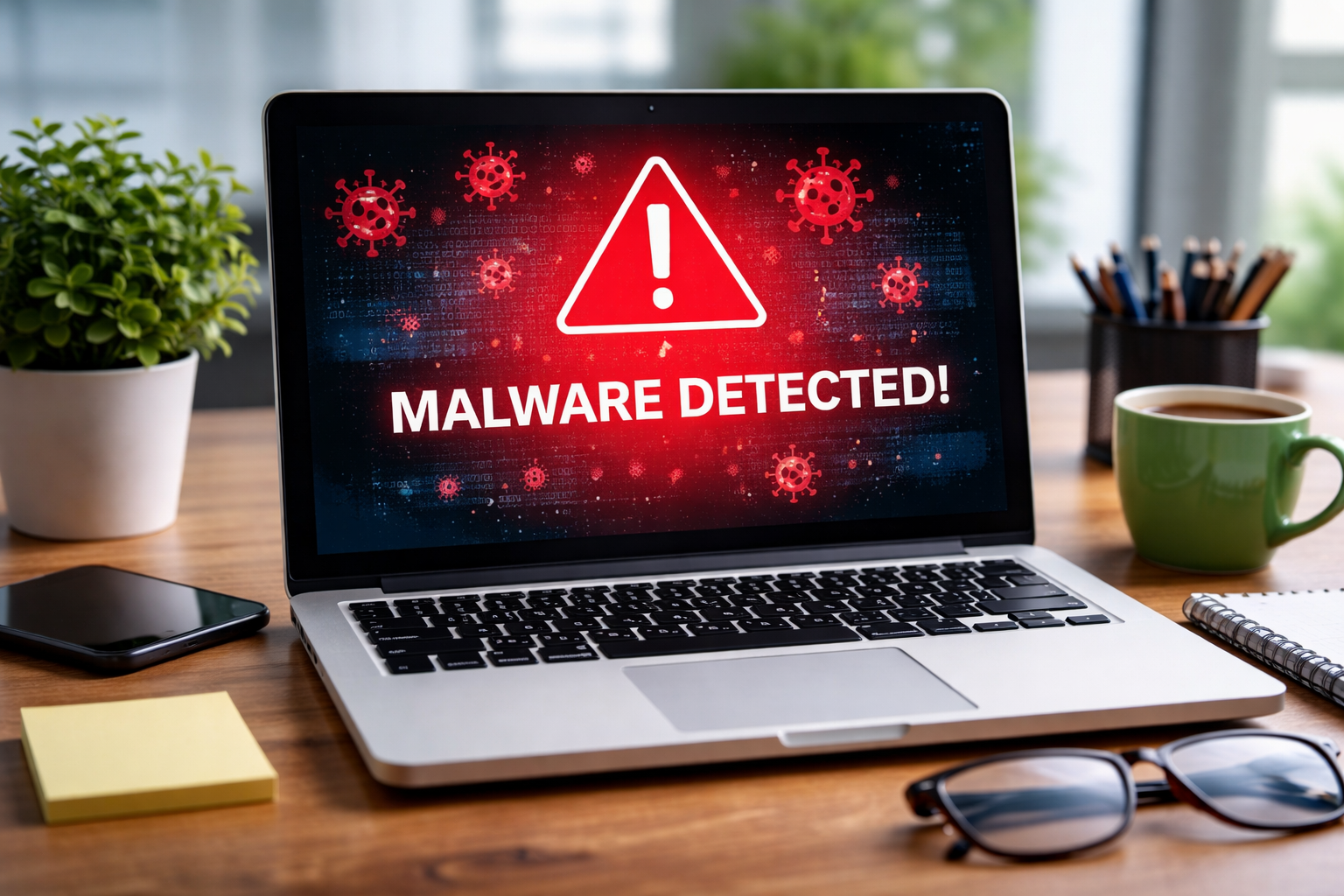
Malware (malicious software) is one of the most prominent threats to your digital privacy and system health. Whether it's silently stealing your personal information or aggressively holding your files hostage, catching the signs early is essential to minimize the damage.
What is Malware?
Malware is an umbrella term for any software intentionally designed to cause disruption to a computer, server, client, or computer network, leak private information, gain unauthorized access to information or systems, or deprive access to information. Common types include:
- Viruses: Programs that attach to legitimate files and spread when the files are opened.
- Spyware: Software that secretly monitors and records your activity, capturing keystrokes and passwords.
- Ransomware: Locks your computer or encrypts your files, demanding payment for the decryption key.
- Adware: Aggressively spams your screen with unwanted advertisements and pop-ups.
- Trojans: Disguised as legitimate software, but open a "backdoor" for hackers once installed.
- Worms: Self-replicating programs that spread across networks without human interaction.
Common Signs Your Computer May Have Malware
Sometimes malware makes itself obvious with flashy, threatening screens. Other times, it hides in the background to remain undetected. Look out for these critical indicators:
- Slow Performance and Freezing: If your computer suddenly takes forever to boot up, or applications constantly freeze and crash without explanation, malware might be consuming your system's processing power.
- Unexpected Pop-ups and Ads: Even when you aren't browsing the web, intrusive ads appearing on your desktop are a major red flag for adware.
- Strange Browser Behavior: Your default homepage suddenly changes, you are constantly redirected to strange websites, or you notice unfamiliar toolbars installed on your browser.
- Unusual Network Activity: Your internet is inexplicably slow, or your router shows heavy activity when no one is using the web. This can indicate malware is sending data out.
- Unauthorized Access or Password Changes: You find yourself locked out of your own accounts, or friends report receiving strange emails sent from your address.
- Missing Files or Corrupted Data: Documents won't open, disappear entirely, or display scrambled text and strange file extensions (a classic sign of ransomware).
- Overheating or Fan Noise: Your computer's cooling fan is constantly running at maximum speed because hidden programs (like cryptominers) are overworking the processor.
- Unexpected Error Messages: You frequently receive cryptic system errors or warnings that core Windows or macOS files are missing.
- Programs Running Without Permission: You notice unfamiliar icons on your desktop or programs launching themselves upon startup.
- Battery Draining Quickly: On laptops, malware running heavy background processes will cause a sudden and drastic drop in battery life.
What to Do If You Suspect Malware
If you notice several of these symptoms, take these steps immediately:
- Disconnect from the Internet: Unplug your ethernet cable or turn off Wi-Fi to sever the connection between the malware and the hacker.
- Boot into Safe Mode: Restart your computer into Safe Mode, which prevents many types of malware from loading on startup.
- Run a Reputable Antivirus Scan: If you have an updated security program installed, run a full system scan while disconnected from the internet.
- Do NOT Log Into Accounts: Do not access your bank, email, or any sensitive accounts from the infected machine until you are certain it is clean.
How to Prevent Malware Infections
Prevention is always easier (and cheaper) than a cure. Protect your systems by following these best practices:
- Keep your operating system and all software completely up to date with the latest security patches.
- Use a reputable, paid antivirus/antimalware solution and ensure real-time scanning is active.
- Exercise extreme caution with email attachments and links—if you don't know the sender, don't click it.
- Avoid downloading software from third-party sites; always use the official vendor's website.
- Use a standard user account rather than an Administrator account for your daily computer usage to limit install privileges.
When to Seek Professional Help
While some minor adware can be removed by users, you should contact a professional if your antivirus won't update or run, you are dealing with a ransomware demand, you use the computer for business data, or you simply want the peace of mind knowing the infection has been deeply and thoroughly eradicated.
Need Professional Malware Removal?
Don't let malicious software put your data and privacy at risk. Our expert technicians at Palm Beach PC Services can thoroughly scan, clean, and secure your computer.
Frequently Asked Questions
Can malware hide from my antivirus?
Yes. Advanced malware, such as rootkits or zero-day threats, are specifically designed to bypass or even disable standard antivirus programs before they can be detected.
Will resetting my PC remove all malware?
In many cases, a factory reset will remove standard malware. However, highly sophisticated malware can sometimes survive a standard reset by hiding in the recovery partition or system BIOS. A clean install by a professional is often safer.
Is it safe to back up files if my computer has malware?
It can be risky. If you back up infected files, you will simply re-infect your computer when you restore them. You should have a professional quarantine and scan the files on an isolated system before backing them up.
How did I get malware in the first place?
The most common ways include clicking malicious links in phishing emails, downloading infected software from untrusted sites, visiting compromised websites, or inserting infected USB drives.
Can Mac computers get malware?
Absolutely. While Macs have robust built-in security, they are not immune. Malware targeting macOS has been on the rise, especially adware, fake tech support scams, and certain types of ransomware.
How long does professional malware removal take?
Depending on the severity of the infection and the speed of the computer, professional malware removal typically takes between 1 to 3 hours. Deep forensic scans require time to ensure the system is completely clean.